Measurement-first Google & YouTube for 8 & 9-figure brands
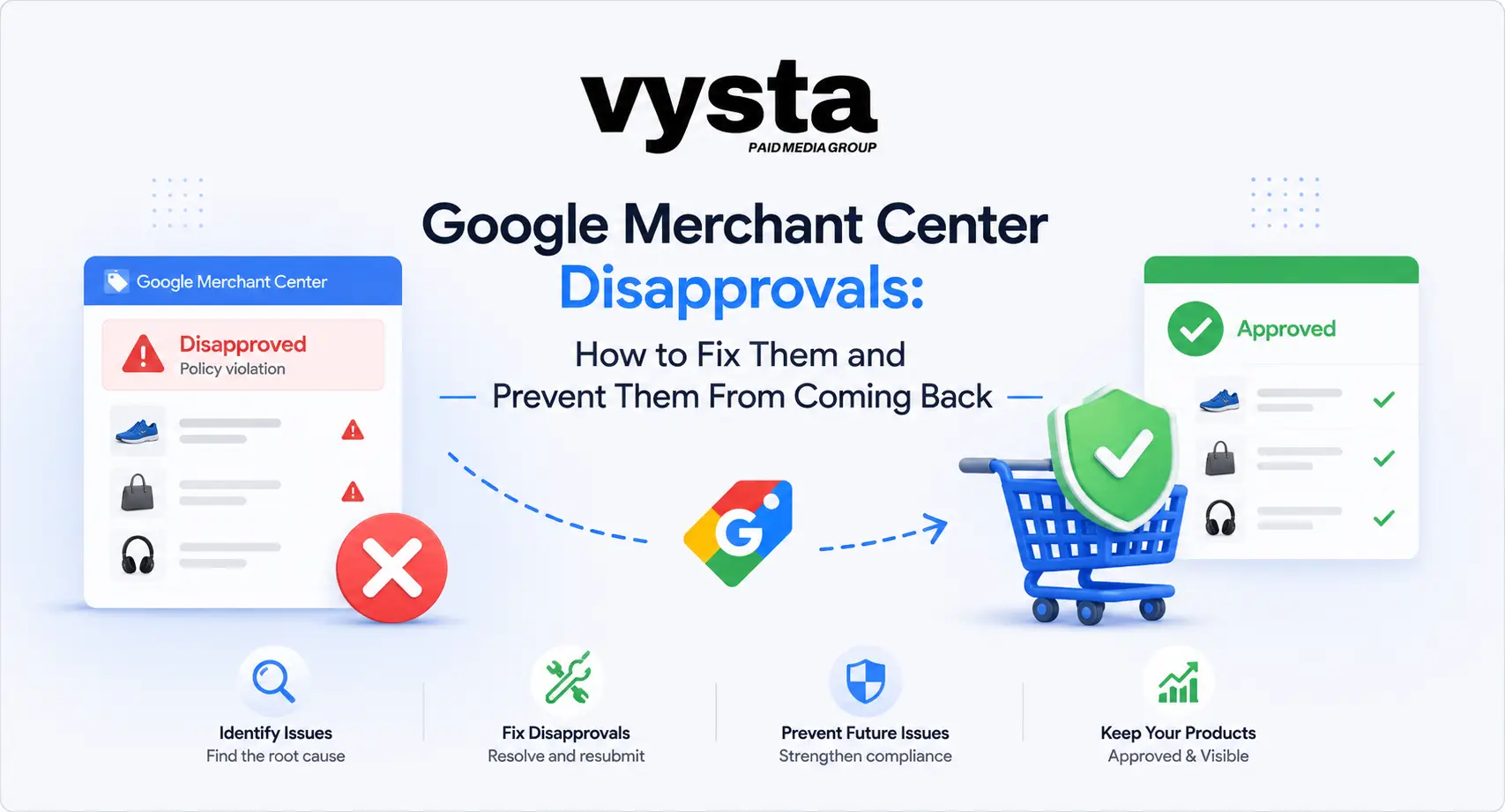
To fix Google Merchant Center disapprovals and prevent them from coming back, you need to know exactly what’s causing them and how to fix it fast. However, if you want to really minimize the risk of them becoming an issue again, you need a structured system that catches problems before Google flags them. A lot of brands only look at Merchant Center after ads stop delivering, by which point they’ve already lost days of sales they’ll never get back.
Fixing a handful of disapproved products works fine at a small scale. You just need to check Merchant Center and fix what’s flagged, but that changes once your brand expands into new markets and adds more SKUs. The same feed error can show up across dozens of new listings at once. And without a set process to catch it, Google’s disapproval notices become the first place you find out something’s wrong.
When your product data doesn’t meet Google’s quality requirements, you get a warning email and a 28-day window to fix it before the account gets reviewed again. If you miss that window, the entire account goes dark, including every product that had nothing to do with the original flag. At scale, a single missed error can cost you every product in your account for weeks, and having a system in place is what stops it from getting that far.
A disapproved product in Google Merchant Center is one Google has reviewed and blocked from showing in Shopping ads and free listings, until you fix whatever triggered the block.
That block happens at one of two levels, and knowing which one you’re dealing with changes everything about the fix:
A disapproved product won’t show up as an error in your ad account or lower your ROAS with a visible flag attached. It just stops generating impressions, and in your campaign reports, that looks exactly like a product nobody happens to be searching for that week.
The only way to tell the difference is checking Merchant Center directly, which is why disapproval can sit unnoticed for weeks while you’re troubleshooting the wrong problem entirely.
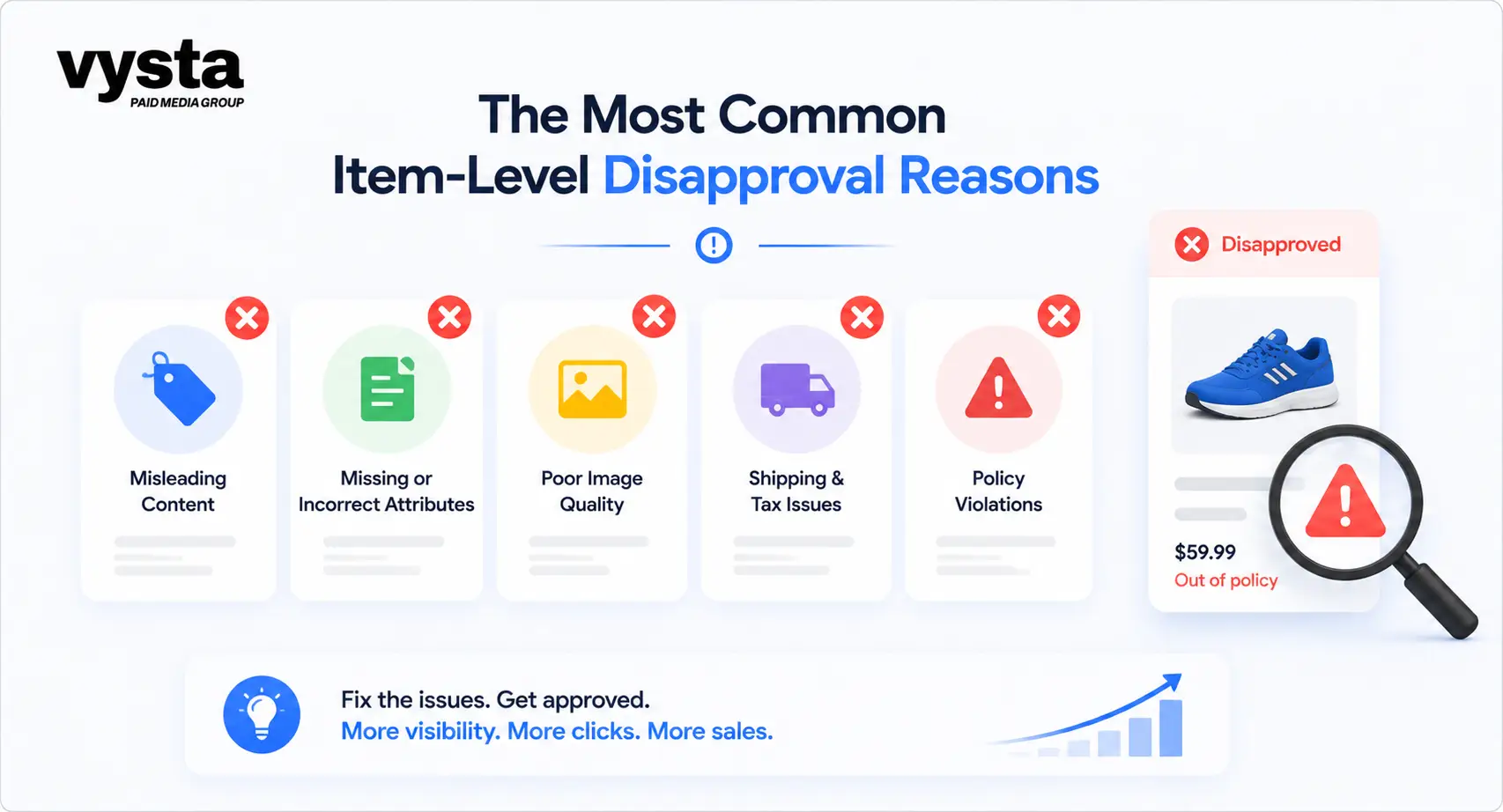
Most disapprovals trace back to a short list of causes, and once you know what they are, you can spot them in your own account a lot faster. A handful of these show up again and again across almost every catalog, regardless of what you sell or which platform your store runs on.
Here’s a rundown of the reasons behind most GMC disapproved products:
Google doesn’t hand you a single, organized list of everything wrong in your catalog. The information lives across a few different tabs in Merchant Center, and knowing exactly where to look saves you from digging through the wrong ones.
One thing worth knowing upfront: the top-level number Merchant Center shows you isn’t always accurate in the moment, some of what’s counted as “disapproved” may have already resolved behind the scenes, so don’t panic at the headline number before digging into the actual list.
Here’s how to pull a complete, accurate picture of what’s wrong, and fix it:
The list of disapproved products from Merchant Center’s Products tab tells you something is wrong. It doesn’t tell you what. That means you have to click into the product to see the actual reason Google flagged it.
Here’s what to do once you’re looking at a disapproved product:
The list from Step 1 tells you something is wrong. It doesn’t tell you what, and guessing at the cause wastes more time than clicking through and reading the actual issue Google flagged.
Here’s what to do once you’re looking at a disapproved product:
Clicking into products one at a time works fine when you’re dealing with a handful of issues. However, it stops being practical once you’re looking at hundreds of disapproved listings across a big catalog.
Making that count sortable and actionable takes a few steps, including:
Sorting by issue type before fixing anything changes what the cleanup work actually looks like. Without it, every listing feels like a separate task, even when the same root cause is behind dozens of them.
With it, you fix the pattern once. If 150 products are missing the same attribute, that’s one correction applied at the feed level instead of 150 manual edits, assuming you’re managing your feed through a platform or feed tool that supports rule-based edits.
If you’re updating product data by hand with no feed tool in place, sorting still saves time by grouping the work, even though each fix still has to be applied individually.
The Products tab and the CSV export you just pulled work best when you already know you’ve got a problem and need to work through it. Diagnostics is for the moment before that, when you just want to know how widespread the problem is without opening a single product.
Diagnostics groups every issue by type instead of by product, which makes it the fastest way to answer one question: is this a handful of scattered problems, or one root cause showing up across a big chunk of your catalog?
Here’s how to use it to answer that:
This step matters most when disapprovals spike suddenly. If a policy update or a bad feed sync just hit a big chunk of your catalog, Diagnostics tells you that in seconds. Digging through an exported spreadsheet tells you that too, but only after you’ve already downloaded and sorted it.
Once you know what’s flagged, the next move is fixing it in the right place. Every disapproval traces back to one of four systems: your feed data, your images, your website, or your Merchant Center settings. Most of the time, the fix lives right where the error shows up, such as a bad price in your feed gets fixed in your feed.
The one exception worth watching for is landing page issues, which Google flags as a product problem even though the actual fix lives on your website, completely outside Merchant Center.
Here’s exactly where each type of issue actually gets fixed, so you’re not chasing the wrong system:
Price or availability mismatch
Your feed
Update the source data so it matches your live site, then let the corrected feed sync. If prices change often, increase your feed refresh frequency since delayed syncing is a common cause.
Missing or invalid GTIN, MPN, or brand
Your feed
Add the correct product identifier if one exists. If the product genuinely has no identifier, which is common for custom or handmade items, set "identifier_exists" to "no" instead of using a placeholder.
Missing apparel attributes
Your feed
Add the required apparel attributes, including gender, size, color, and age group. Use consistent formatting across your entire catalog.
Image policy violations
The image file itself
Remove watermarks and promotional overlays, make sure the image meets Google's minimum size requirements, then re-upload it before your next feed refresh. If the image URL is broken, fix the link instead of only replacing the image.
Landing page issues
Your website
Repair broken links, fix redirects that send visitors to the homepage instead of the product page, and confirm your "robots.txt" file allows Googlebot to crawl your product pages and images.
Shipping and tax setup gaps
Merchant Center settings
Review your Shipping and returns settings to confirm every target country has a shipping service with accurate rates and delivery times. Verify your tax settings as well, where applicable.
Policy violations in titles or descriptions
Your product copy
Remove promotional language, excessive capitalization, discount codes, and unsupported claims. Save the changes, then resubmit the product for review.
How you apply the fix matters as much as identifying it. A single affected product just needs the correction made directly. Once the same root cause is hitting dozens or hundreds of listings, fix it at the source instead. That could mean a feed rule, a template update, or a site-wide redirect fix, whatever applies the correction to every matching product at once.
A single disapproved product just needs a direct edit. The same error showing up across 200 products calls for a different tool. Merchant Center has a built-in feature for this: attribute rules, which were previously called feed rules. It fixes a field across every matching product at once, instead of opening each listing individually.
Every rule has two parts: a condition and an action. The condition decides which products the rule applies to, like any product where the brand field is empty. The action decides what happens to those products, such as filling that field in with a value pulled from somewhere else in your data. Once a rule is set up, it runs automatically on every future feed upload.
Here’s how to actually build one:
This is worth building any time the same fix needs to happen more than a handful of times. Manually editing 200 listings for the same missing attribute is slow and easy to get wrong. One correctly built rule does it in a single pass, and keeps doing it automatically for any new product that matches the same condition going forward.
A fix that’s live on your end doesn’t mean anything to Google until it’s been re-checked. Until you request a review or your feed reprocesses, the product stays exactly where you found it, disapproved.
What happens next depends on what you fixed and how:
Check Diagnostics again once you’ve resubmitted to confirm the fix actually landed:
Merchant Center’s rules don’t stay still, and a handful of changes over the past year could be affecting your account without you realizing it. If products that used to run fine are suddenly getting flagged, one of these is worth checking first.
Here’s what changed, and what to watch for:
Google separated how installment pricing works in your feed. Merchants used to be able to represent a down payment using the standard price field. That’s no longer accepted. If your feed still does this, those listings get flagged as a price mismatch, since Google now expects the price field to reflect the full up-front cost, with the down payment submitted through its own dedicated downpayment sub-attribute inside the installment attribute.
For products sold in the EU, the energy_efficiency_class attribute was replaced with a broader certification attribute. Norway, Switzerland, and the UK still use the original attribute, so this isn’t a blanket change across every market. A feed still mapped to the old attribute for EU-targeted products can start showing disapproval that weren’t there before, simply because the requirement moved to a different field.
Google added dedicated attributes, structured_title and structured_description, that merchants must use when a product’s title or description was written using generative AI. Google’s own documentation is direct about the consequence: products that don’t meet this requirement get disapproved. Routing AI-generated text through the correct attributes instead of the standard title and description fields resolves it.
Misrepresentation is an account-level violation. Where an item-level disapproval takes down one listing and leaves the rest of your account running, a misrepresentation violation can suspend your entire Merchant Center account at once, usually without any warning first.
Google treats misrepresentation as a serious violation, which means there’s often no warning period before your account gets suspended. According to Google’s misrepresentation policy, violations found through this review can result in suspension upon detection, without prior warning.
Here’s what typically triggers misrepresentation:
Fixing misrepresentation means auditing your entire storefront, policy pages, checkout flow, contact details, and product data, since Google evaluates the whole picture rather than individual listings. A partial fix rarely works here.
Once resolved, request an account review through Merchant Center. Reviews typically take around 7 business days, sometimes longer for complex cases. An unsuccessful review usually triggers a cool-down period before you can request another one, so getting it right the first time matters more than appealing repeatedly.
Fixing today’s disapprovals only solves today’s problem. Building a weekly habit around checking data quality is what actually stops the same issues from resurfacing every few weeks.
Here’s what that habit should include:
None of these steps take long individually. Run together as a weekly habit, they’re what separates an account that deals with the same disapprovals over and over from one that catches problems before they cost a single day of visibility.
When it comes to fixing disapprovals, look beyond the issue you’re facing right now. Make sure you can also catch similar issues before they even happen, especially as your brand scales.
That means you should not only learn how to find disapproved products and stay current on the latest policies that can cause disapproval. More importantly, you should build a prevention system that can help keep that cycle from repeating.
If you need help building a battle-tested system for your feed, book a free audit call with Vysta Paid Media Group. We’ve helped fast-growing ecommerce brands find the root cause of their disapprovals and get them fixed before they cause any real problems. We can do the same for you.
Most item-level disapprovals clear within a few business days once you correct the feed and request a review. Simple data fixes like price or GTIN errors process fastest, often within 24 to 48 hours. Account-level reviews, including suspensions, typically take around 7 business days. Fixing the root cause before requesting a review speeds up every timeline.
Your product likely got disapproved with no visible reason because the account-level summary only shows a status. To know exactly what triggered it, click into the individual product listing. Every disapproved item has a specific reason attached there, along with a direct link to the exact policy or data requirement that caused it.
Yes, but only through separate Search campaigns, since Google Shopping and standard text ads run on two different systems. A disapproved product can’t show as a Shopping ad or in free listings, since both are blocked at the feed level. A manually built text ad pointing to the same page isn’t affected, unless the disapproval involves a serious policy violation.
There’s no set number of disapprovals before your account gets suspended. Suspension happens when Google’s ongoing monitoring shows a consistently high share of your catalog failing to meet requirements. Misrepresentation works differently and can suspend the account immediately, with no warning or disapproval count involved.
The difference between a disapproval and a suspension comes down to scope. A disapproval removes one product while the rest of your account keeps running. A suspension removes every product across your entire account until the issue is resolved and reviewed. One exception worth knowing: preemptive item disapproval looks like a product-level issue but is actually enforced at the account level.
Book a call with Nate Schneider to explore how Google and YouTube ads can drive scalable, measurable growth.